Commander
Commander at a glance
- What it is
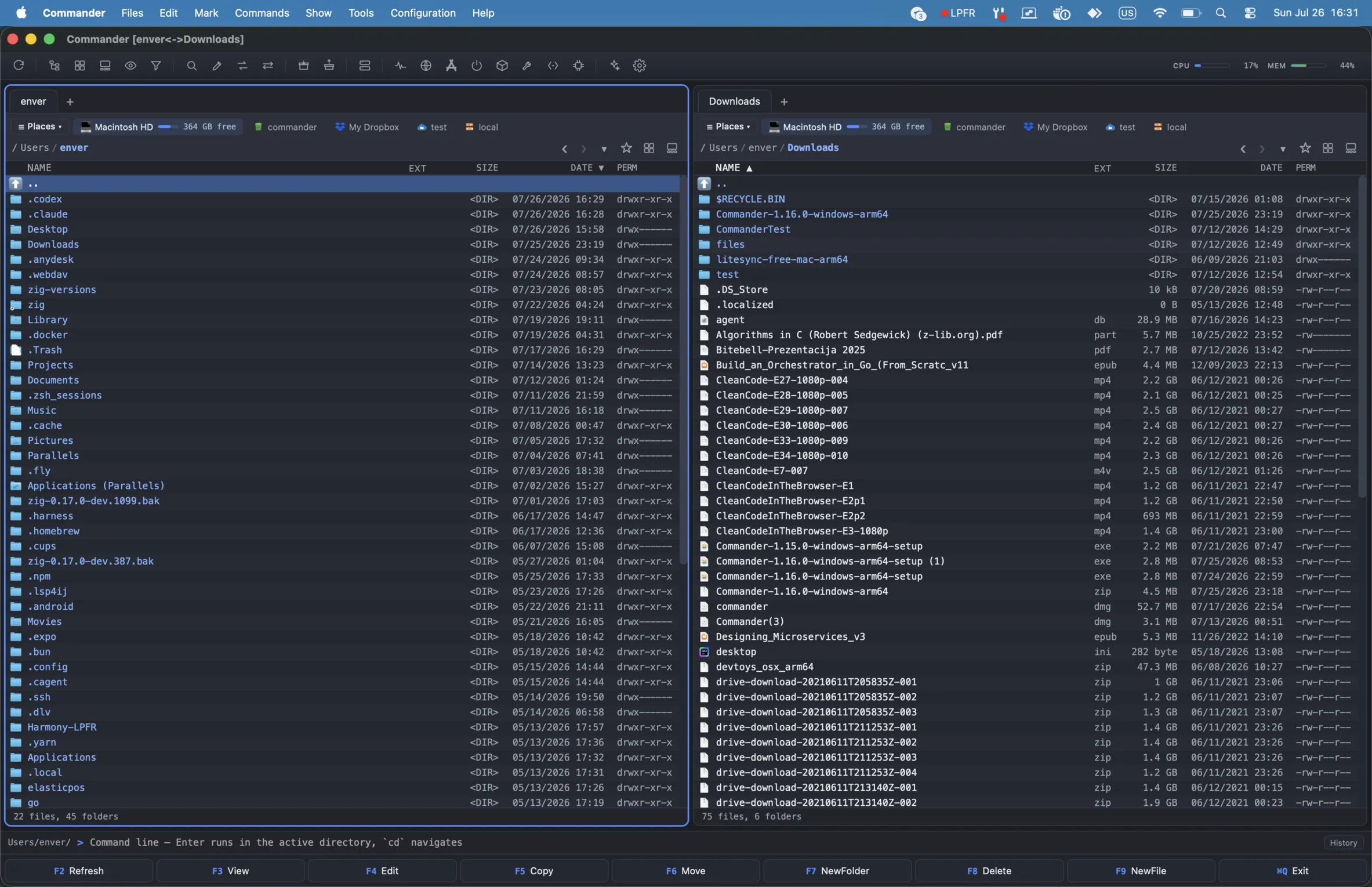
- A desktop file manager with side-by-side, stacked and four-pane layouts, plus keyboard-first and mouse workflows.
- Platforms
- macOS, Windows and Linux.
- License
- Fully functional shareware. Registration costs $10 / year and removes the startup reminder.
- Best for
- Fast file operations, batch work, archives, remote storage, file inspection and disk cleanup.
Overview
Commander is a keyboard-driven file manager with configurable two- and four-pane layouts. It is built for the everyday rhythm of copying, moving, comparing and organizing files, but it also carries heavier tools: batch renaming, recursive search, directory synchronization, archive handling, file conversion, encryption, checksum creation and verification, an integrated terminal, a shell-to-GUI command-line interface, remote and cloud panels for SFTP, S3-compatible object storage, WebDAV, FTP/FTPS, Dropbox, Google Drive, OneDrive, Box and pCloud, saved remote-desktop connections, encrypted Nearby Share transfers between your own computers, SMB and NFS network-share browsing, gallery browsing, an Activity Monitor for CPU, memory and disk, and a guided disk cleanup that reports what it can reclaim. It runs on macOS, Windows and Linux.
Copies, moves, deletes, renames and newly created files are undoable, every keyboard command can be rebound, a command palette (Ctrl+Shift+P) runs any menu command by name, and quick file search (Ctrl+P) finds a file anywhere below the current folder. Colour tags, priorities and rule-based row colours keep track of your own work; named workspaces and a persistent drop shelf keep track of where you were and what you were gathering.
The trial is not crippled. Commander is fully functional as shareware: every feature is available, and the unregistered edition only shows a short startup dialog before the app opens. Buying a license removes that dialog and supports continued development.
For a searchable guide to the product, see the Commander documentation.
Release notes
Loading release information...
Two modes
On first launch Commander asks how you like to work, and you can switch at any time.
Normal
A clean, roomy layout for everyday file management — comfortable spacing, curated columns (name, size, date), hidden and system files kept out of the way. Recommended for most people, with the full set of file, view, batch, archive and conversion tools.
Advanced
A dense, terminal-forward layout for power users — sysadmins, developers and tinkerers. Compact monospace listing, a POSIX permissions column, hidden files shown, and an always-on command line with shell-history autocomplete. It adds a Git status bar, a binary inspector, a hex viewer, a package manager (Homebrew on macOS, winget or Chocolatey on Windows) and an external-tools checker.
Features
Panes, navigation & menus
- Show → Pane Layout switches between side-by-side panes, an over/under pair and a four-pane grid. Each pane has folder tabs, independent navigation, selection, a footer and sortable columns for name, extension, size and date.
- Operations stay pairwise in every layout. With two panes the other pane is the target; in the four-pane grid the last active pane is the default, or pin any inactive pane with its Target control. Copy and Move also show all three inactive panes as destination cards.
- Right-click a tab to lock it: a locked tab is a fixed folder bookmark, so navigating away opens a new tab instead of moving it. Close-all leaves locked tabs alone.
- Sessions persist between launches, including the layout, divider positions, pane locations, tabs, locks and history; a new window starts keyboard-ready in the left pane.
- Named workspaces save a whole arrangement — layout, dividers, every visible pane, every tab, which is active and the view modes — under a name and restore it later.
- Multiple windows: New Window (Ctrl+N / ⌘N) opens another full Commander window on any platform. On macOS the Dock menu lists and focuses every open Commander and Viewer window; on Linux the launcher quicklist offers New Window.
- Native OS menu bar with Commander, Files, Edit, Mark, Commands, Show, Configuration, Help and, in Advanced mode, Tools. Menu commands display their keyboard shortcuts, with Alt+letter menu access on Windows.
- Clickable breadcrumb paths, native macOS file icons with cross-platform fallbacks, per-pane history (Alt+↓), keyboard drive pickers (Alt+F1 / Alt+F2) and directory hotlist bookmarks (Ctrl+D).
- Right-click context menus for files, folders, tabs, trash and empty pane space, including native Windows Shell verbs and platform-specific actions such as macOS Open With, Share and Tags.
- Quicksearch by typing, next-match cycling, list filtering (Ctrl+S, ⌘F on macOS), hidden-file toggle (Ctrl+H), in-pane folder tree, thumbnail view and gallery view.
- Command palette (Ctrl+Shift+P) runs any menu command by name. The list is generated from the menu bar itself, so it always matches the app, and commands the current selection cannot act on are dimmed rather than hidden.
- Sync Browsing (Show menu) makes the other pane follow the same relative navigation: enter
photos/2024on one side and the other enters its ownphotos/2024; go up two levels and it goes up two. An unrelated jump such as a bookmark mirrors nothing, and a folder the other side does not have leaves it where it is. - Ctrl+← / Ctrl+→ opens the folder under the cursor in the target pane and Ctrl+↑ opens it in a new tab, with the same actions available from the Show menu.
- Quick file search (Ctrl+P) finds a file anywhere below the active pane and opens it in the editor. It asks Commander's own index first, then the platform's index — Spotlight, Windows Search or
locate— and falls back to walking the filesystem, so a result never depends on an index being up to date.
Tags, colours & finding your own work again
- Give any file or folder one of seven colour tags from the right-click menu. On macOS these are the operating system's own tags, so the rest of the desktop sees them; on Windows and Linux, where there is no system-wide tag API, Commander stores its label with the file itself — an extended attribute or an NTFS stream — so it travels with the file instead of living in a database.
- The same menu sets a priority — Important, Very important or Critical — marked on the row and identical on every platform.
- A pane's tag sidebar filters the whole volume by colour or priority and returns a flat list you can act on normally. On macOS the colour filters go through the system index and are immediate; elsewhere Commander scans in the background with a Stop button.
- Row colours are an ordered, first-match-wins list of wildcard rules in Settings —
*.log,node_modules— each with a colour and a files-or-folders scope. Matching rows are tinted in the list, tree, thumbnail and gallery views alike. - Persistent file comments attach a note to a file as an extended attribute, with a comments column to show them.
Viewing, preview & plugins
- Quick View (Ctrl+Q) turns the target pane into a live preview that follows the cursor.
- Standalone Viewer windows (F3) support text, source with syntax highlighting, Markdown, parsed unified diffs, JSON trees and tables, filterable logs, tables, images, PDFs, EPUB, audio and video.
- Viewer tools include word wrap, text/hex mode, encoding switch, zoom, rotate, find, next/previous file navigation and a separate native Viewer menu. JSON uses bounded lazy expansion, while log text and level filters search the complete bounded input.
- Office/iWork previews use QuickLook on macOS when available.
- Advanced mode adds raw hex view and a binary inspector for executables and libraries, including sections, symbols, strings and linked libraries.
- Viewer, thumbnail, converter, packer and filesystem plugins are discovered at startup, while deployable plugin packages are advertised from the release server so compatible plugins can be installed as they become available.
- Filesystem plugins declare granular copy-out, copy-in, create-folder, rename and delete capabilities. Commander enables only those operations, keeps archive and disk-image providers read-only, and runs supported bulk transfers through its background queue.
Built-in editor
- Edit (F4) opens a syntax-aware editor in its own window for local UTF-8 text, configuration and source files.
- Syntax highlighting and code folding for dozens of languages — including JavaScript, TypeScript, JSON, HTML, CSS, Markdown, Python, Rust, C and C++, Go, Java, PHP, SQL, YAML, TOML, Shell and Zig — detected automatically from the file name.
- Save (Ctrl+S), reload from disk, undo and redo, find and replace, go to line, word wrap, and fold or unfold all blocks, from the toolbar or the native Editor menus.
- A status bar shows line and column, selection length, line count, byte size, line ending (LF or CRLF, preserved on save), encoding and the detected language.
- Unsaved changes are guarded when reloading or closing the window, and Reveal in Commander jumps back to the file in its pane. You can also set Edit to open your system's default editor instead.
File operations & batch tools
- Classic function-key workflow: F3 view, F4 edit, F5 copy, F6 move, F7 new folder, F8 delete and F9 new file; Shift+F6 renames and Alt+F4 quits (⌘Q on macOS).
- Copy and move open an editable destination prompt, then run in the background across local, remote and cloud panes. For one local item the prompt includes its filename, so changing the basename names the copied or moved result in the same operation. Remote-to-remote transfers stage one top-level item at a time, and a remote move deletes its sources only after the complete relay succeeds.
- Local collisions offer replace, keep both, skip or cancel. Each saved remote connection can instead ask every time, replace or skip automatically; the choice stays in the OS secret store with the connection.
- The activity popover shows the whole operation queue. Pending transfers can run sooner or later without interrupting the active operation, and an optional aggregate speed limit covers local copies and native cloud transfers.
- Undo File Operation (Files menu, or Alt+Backspace) puts back the last copy, move, delete, rename or new folder: a trashed item comes back out of the Trash, a move returns to the folder it came from even when the selection spanned several, and undoing something that created files trashes them instead of deleting them. Only exactly reversible steps are offered — a permanent delete, a delete on a remote or cloud pane and a move you resolved with Keep both stay greyed out instead of half-working.
- Recoverable delete moves files to the OS Trash; Shift+F8 or Shift+Delete deletes permanently. Trash views include Put Back and Empty Trash actions.
- Securely Delete… overwrites the selected files with random data before removing them. The confirmation says plainly that this is a deterrent rather than a guarantee — an SSD writes elsewhere and a copy-on-write filesystem allocates new space, so full-disk encryption is what actually protects data on that hardware. Local files only.
- Verify copied files (Options → Operations, off by default) reads each copy back and compares checksums with the source, catching a drive or enclosure that accepted a write without keeping it. It also runs before a move to another disk removes the original.
- System-style clipboard operations (Ctrl+C, Ctrl+X, Ctrl+V) work for files, including paste into the target pane.
- Drag rows between panes or onto folders; holding Alt moves instead of copies.
- The Drop Shelf collects files and folders from as many locations as you like into a persistent tray, then copies or moves the whole collection into the active pane at once. It survives a restart, holds local items, and keeps the usual collision prompts, progress and Undo — anything skipped or failed stays on the shelf.
- Multi-rename (Ctrl+M) supports name, extension and counter masks, plugin metadata masks such as
[=exif.DateTaken], literal or regular-expression search and replace with capture groups, case transforms, live preview and collision detection. - Find files (Alt+F7) searches recursively by name and content, supports date, size, kind and extended-attribute filters, can search inside archives, then jumps directly to a result. Name searches can draw on Commander's current complete catalog and the platform's own index for speed; filesystem traversal remains available whenever an index cannot answer.
- Directory synchronization (Shift+F2) categorizes differences between the source and target panes and copies either direction, recursing through subfolders. It covers local-to-local, local-to-remote and remote-to-remote pairs, plus recursive archive and filesystem-plugin comparisons; archives remain comparison-only and plugin copy directions follow their declared capabilities. Compare by Content opens a side-by-side line diff.
- A one-way sync can mirror destination-only items. Deletion rows start unchecked and receive a separate exact-path review; copies must all succeed and the plan must pass a fresh revalidation before any deletion begins. Local and supported cloud destinations name their recovery area, while providers without Trash integration are marked permanent.
- Save a one-way comparison as a profile and it can run with no window at all —
Commander --sync-profile NAME, a dry run unless you ask it to apply. The dialog can also install a per-user schedule (at login, hourly, daily or weekly) through launchd, Task Scheduler or systemd, and shows when it last ran and what it did. - Change Attributes… applies modified and accessed timestamps and POSIX permissions across a selection, optionally down through nested folders, on the same cancellable background worker.
- Properties (Alt+Enter) shows file details and can calculate folder sizes on demand; Space on a local folder calculates and displays its size inline.
- Create Checksum File… and Verify Checksums… (Files menu) write and check SHA-256, SHA-512, SHA-1, MD5 and CRC-32 (
.sfv) manifests on a background worker with a Stop button. The formats are the interoperable ones: what Commander writes verifies withshasum -c, and it reads whatshasum,md5sumor an SFV tool wrote, including BSD-tagged lines and manifests that mix digest types. Mismatches and missing files are listed first.
Archives, conversion & documents
- Pack selected files into the target pane with Alt+F5, with an editable destination and configurable archive formats where supported.
- Unpack archives into the target pane with Alt+F9.
- Browse supported archives as virtual folders, including plugin-backed archive and disk-image filesystems, and extract selected members with F5.
- Packer plugins can handle extra archive formats and report cancellable live progress while packing or extracting.
- Combine multiple files, split large files, combine PDFs and split PDFs into pages.
- Convert known file types across data, image, audio, video and document categories, including PDF output where supported.
Remote, cloud & devices
- Connect to Server (Ctrl+F) opens every remote type in a pane like a normal folder — copy, move, rename, delete and preview behave the same as they do locally.
- SFTP panels use the system OpenSSH client with key and agent authentication, so passwords are not stored.
- S3-compatible object-storage panels browse buckets and prefixes on Amazon S3, Backblaze B2, MinIO and Google Cloud Storage interoperability endpoints.
- WebDAV shares such as Nextcloud and ownCloud, plus FTP and explicit FTPS servers, connect in-process — no external
curlor helper tool required. - An FTP, FTPS or WebDAV connection you chose not to save a password for asks for it when the pane opens, and asks again if the server rejects it, so nothing needs to be written down to browse once. SFTP stays key- and agent-only by design.
- Dropbox, Google Drive, OneDrive, Box and pCloud sign in through your provider's own login page in the browser; your password never enters the app. Providers whose app keys are not configured in a build stay disabled rather than presenting a broken sign-in.
- On macOS, iCloud Drive appears in Places as a normal local folder, with macOS handling the account, synchronization, offline files and permissions.
- Saved connections appear in the drive strip as bookmarks. Every key, token and password lives only in the OS keyring or secrets manager — never on our servers and never on disk in the clear.
- Network shares open in-pane on every platform. Windows browses workgroups, computers and shares before continuing through normal UNC paths; macOS and Linux list SMB/NFS shares already mounted by Finder, GVfs or system configuration, then enter their native paths with the full local operation surface.
- Connected phones and cameras appear in the drive strip too: browse an iPhone or iPad over AFC on macOS, or MTP devices and cameras through gvfs on Linux, and copy media straight into a pane.
- Remote desktops sit next to the file connections (Ctrl+Shift+R, or the toolbar dropdown): save a machine once — RDP, VNC, AnyDesk, TeamViewer or your own command line with
{host},{user}and{port}placeholders — and connect in one step. Commander launches the client you already use rather than embedding a viewer, and shows the exact command before running it. - A saved remote-desktop password is copied to the clipboard for you to paste into the client's own prompt, never placed on a command line where other processes could read it. The profiles live in the OS secret manager like every other connection.
- Export and import all connections from either dialog — one file covers the remote and cloud panels and the remote desktops. The default export leaves credentials out, so it is plain JSON you can read, diff or keep in version control; including them requires a passphrase, because Commander will not write credentials to disk in the clear. Import merges by default, updating matching connections in place instead of duplicating them, or replaces everything for a restore.
Nearby Share
- Files → Share with Nearby… sends files directly to another computer running Commander on the same local network: pick a device, the other side accepts, the files arrive. It works the same way between macOS, Windows and Linux.
- This is Commander's own protocol, so it reaches other Commander desktops only. The sharing panels built into phones and tablets use different protocols and will not see it, and there is no Commander mobile client.
- Nothing is uploaded and there is no relay server. Files move over a direct connection between the two computers, with every metadata and file chunk separately encrypted and authenticated.
- The receiver accepts every transfer explicitly, and a first-time device shows a matching six-digit code on both screens before anything is sent.
- Visibility is yours to set: known devices only, everyone for ten minutes, or no one. A fresh installation starts open to everyone for ten minutes, shows a live countdown, then falls back to known devices on its own. A known device is a Commander key you chose to remember — no address book, phone numbers or accounts are involved.
- On Windows, Commander asks for confirmation once to add its own firewall rules, scoped to the Commander executable and your local subnet, so discovery also works on networks Windows classifies as Public.
- Received files land in Downloads with collision-safe names. Folders are not sent yet; select regular files.
Command line, terminal & system tools
- Built-in command line (Ctrl+L) runs shell commands in the active directory;
cdnavigates the pane. - Open Terminal (Ctrl+`) drops a real interactive shell into a panel at the bottom of the window, rooted in the active pane's directory. Local context menus can also open a new terminal tab at an exact file or folder. It runs over a genuine PTY — ConPTY on Windows — so full-screen programs, colors, scrollback and Ctrl+C all work.
- The terminal panel takes tabs (Ctrl+Shift+T / Ctrl+Shift+W, Ctrl+Tab to cycle), copies and pastes with Ctrl+Shift+C / Ctrl+Shift+V — the spelling Linux terminals use, because Ctrl+C belongs to whatever is running — and has its own right-click menu. Drag its top edge to resize it, and the height is remembered. Closing the panel only hides it: a long build keeps running and keeps scrolling until you come back. When the shell reports its current directory, the displayed path and tab label follow
cd. - Run
commander --helpin an external shell for Commander's CLI. A second invocation can reveal, view or edit a path in the running app, navigate either pane, open a workspace, select path lists, fill the Drop Shelf or show a notification. An owner-only per-session token authenticates the local, data-only handoff to the last-focused Commander window. - Pipe a diff, Markdown, JSON, logs, CSV, text or verified media into
commander view --type TYPEfor a structured Viewer window. Automatic detection is conservative and HTML is not an allowed type. The command-line reference documents every command and limit. - Command-line autocomplete is fzf-style and learns from the current session plus real zsh, bash or fish history; prefix matches appear dimmed inline and can be accepted with Right Arrow.
- The command History button opens searchable in-memory output records with command, working directory, exit status, stdout and stderr. History is bounded to the current session and is never written to disk.
- Activity Monitor (Ctrl+Shift+M) is the single place for how the machine is doing: CPU, memory and disk charts, searchable and sortable process tables, per-volume capacity, and the listening network ports — in both interface modes. Optional CPU, MEM and DSK toolbar gauges open the same tabs; they are off by default, so background sampling otherwise runs only while the monitor is open.
- Advanced mode adds the Tools menu — installed apps, package managers (Homebrew, winget or Chocolatey), an external-tools check, hex view and binary inspection — plus the permissions column, the always-on command line and the container filesystem browser.
- Configurable button bar lets you add your own command buttons alongside the built-in toolbar actions.
Security, cleanup & settings
- Encrypt files into
.cmdrcontainers using passphrase-based encryption; decrypt restores the originals with the passphrase. - Optional keychain/libsecret storage can remember passphrases on supported systems.
- Protect Folder revokes OS access permissions behind a passphrase; Unlock restores access. Use file encryption for data that must be cryptographically protected.
- Smart Clean includes System Junk, Large Files, Large Directories, Duplicates, Installed Apps and Git repository maintenance, reports reclaimable space and removes selected items. It starts only the tab you open and labels results as coming from Commander's index or a filesystem fallback; duplicate contents and live Git metadata are still verified.
- The Installed Apps view sorts by cleanup relevance, last use, size, install date or version, so rarely used bulk surfaces first. Relevance is a ranking, not a verdict — on macOS an uninstall moves the app to the Trash, and related bundle-ID files are shown unverified, individually selectable and never preselected.
- Cleanup is conservative: junk locations are whitelist-based, duplicates are confirmed by checksum, and deletion defaults to the Trash.
- Settings are searchable by name and cover language, date format, fixed or automatic size units, theme, hidden files, confirmations, visible columns, row colours, fonts, plugins, search sources, transfer limits, AI settings, custom toolbar buttons, external archivers, keyboard shortcuts and Normal/Advanced mode.
- Export settings creates a portable JSON backup and Import applies it immediately. Credentials and AI API keys are deliberately left on the original device.
- The built-in manual (F1) covers the whole app in fourteen illustrated topics, and its shortcut reference is generated from the live key table — so it shows the keys you actually have, including anything you rebound.
- Every keyboard command can be rebound under Settings → Shortcuts. A combination already in use says which command it would displace before you commit, one the menu bar owns is pointed out, and changes apply immediately — the help reference, button captions, tooltips and the native menus all follow. Only the commands you change are stored, so later releases' new defaults still reach you. Cursor movement, selection and quicksearch typing stay fixed: they are how the panes navigate rather than commands.
- Theme follows your operating system's light or dark appearance, or stays locked to light or dark (Options → Appearance). The choice applies to the panes, dialogs, the integrated terminal and the separate Viewer and Editor windows, and takes effect immediately.
- Smaller behaviors are configurable too: keep folders sorted A–Z when the list is sorted by date, and make Num +/− pattern selection affect files only and leave folders untouched.
- The interface is localized into more than thirty languages and follows either your system locale or an explicit choice, with right-to-left layout for Arabic and locale-aware dates, numbers and sizes. Your own data — paths, command text and output, application names and release notes — is never translated.
Customer reviews
Loading verified customer reviews...
Plugins
Commander has an extensible plugin system for viewers, thumbnails, converters, archive packers and virtual filesystems. Plugins are discovered at startup and can be installed, updated, enabled or disabled from Settings → Plugins.
Examples include CSV and SQLite viewers for Quick View and F3, 7-Zip and ZIP Extras packers for additional archive formats, and Archive FS, Disk Image FS and Containers FS for browsing packaged or external content like normal folders.
The built-in Marketplace installs from a public catalog out of the box, and you can
add your own catalog URLs under Settings → Plugins → Sources. Commander
merges every source, badges each plugin with where it came from, and verifies each
package against the SHA-256 listed in the source it was installed from.
The same verified marketplace path is available headlessly through the
commander plugins search, install, list and
remove commands.
Feedback and support
Help shape Commander by describing a workflow that could be improved, or send the technical details needed to reproduce a problem.
Keyboard shortcuts
| Tab | Switch active pane | Enter | Open folder or file |
| Backspace | Go up one level | Alt+↓ | Folder history |
| Alt+F1 | Left pane drive picker | Alt+F2 | Right pane drive picker |
| Alt+← / Alt+→ | Back / forward | Ctrl+U | Swap active and target panes |
| type letters | Quicksearch by name | Ctrl+↓ | Next quicksearch match |
| Ctrl+S | Filter the list | Esc | Clear search, filter or preview |
| Ctrl+N | New window | Ctrl+B | Directory branch view |
| Ctrl+Shift+B | Branch view of selected folders | Ctrl+Shift+P | Command palette |
| Ctrl+T | New tab | Ctrl+W | Close tab |
| Ctrl+Tab / Ctrl+Shift+Tab | Next / previous tab | Ctrl+D | Bookmark folder / hotlist |
| Ctrl+Shift+T | New background tab | Ctrl+Shift+W | Close all tabs |
| Ctrl+← / Ctrl+→ | Open folder in the target pane | Ctrl+↑ | Open folder in a new tab |
| Ctrl+Q | Toggle Quick View | Ctrl+Shift+Q | Quick View in a window |
| Ctrl+F8 | Folder tree | Ctrl+H | Toggle hidden files |
| Ctrl+A | Select all | Ctrl+P | Quick file search |
| Space | Select; calculate folder size | Insert | Select and move down |
| F1 | Help | Shift+F6 | Rename |
| F3 | View in Viewer window | F4 | Edit in built-in editor |
| F5 | Copy to target pane | F6 | Move to target pane |
| F7 | New folder | F8 / Delete | Move to Trash |
| Shift+F8 | Delete permanently | F9 | New file |
| Alt+F4 | Quit (⌘Q on macOS) | Alt+Enter | Properties |
| Shift+F2 | Synchronize directories | Ctrl+Shift+R | Connect to remote desktop |
| Alt+F5 | Pack into archive | Alt+F9 | Unpack archive |
| Alt+F7 | Find files | Ctrl+M | Multi-rename |
| Ctrl+C / Ctrl+X | Copy / cut files | Ctrl+V | Paste files |
| Ctrl+L | Focus command line | Ctrl+` | Toggle integrated terminal |
| Ctrl+F | Connect to Server | Ctrl+Shift+F | Disconnect |
| Alt+Backspace | Undo file operation | Ctrl+Shift+M | Activity Monitor |
| Ctrl+I | Show the target pane's folder here | Ctrl+Shift+U | Swap active and target tab sets |
| Alt+F8 | Command-line history | Alt+Shift+Enter | Calculate all folder sizes |
| Cmd+Delete | Move to Trash on macOS | Cmd+Shift+Delete | Delete permanently on macOS |
Function bar: F3 View · F4 Edit · F5 Copy · F6 Move · F7 New folder · F8 Delete · F9 New file · Alt+F4 Exit. The captions follow your own bindings, so a rebound command relabels its button.
In the terminal panel (only while the shell has focus): Ctrl+Shift+T New tab · Ctrl+Shift+W Close tab · Ctrl+Tab Next tab · Ctrl+Shift+C Copy · Ctrl+Shift+V Paste. On macOS these are ⌘T, ⌘W, ⌘C and ⌘V, since no shell binds Command.
In the built-in editor (F4): Ctrl+S Save · Ctrl+R Reload · Ctrl+F Find · Ctrl+H Replace · Ctrl+G Go to line · Ctrl+W Close window
On macOS, use ⌘ in place of Ctrl for menu commands; a few actions differ (Filter is ⌘F, hidden files ⌘⇧., Properties ⌘I), and where ⌘ is reserved by the system Commander keeps Control — ⌃Q Quick View, ⌃M Multi-rename. Undo also answers to Ctrl+Z (⌘Z) whenever the system's text-editing Undo has not claimed it first; on macOS ⌃Z edits the file comment instead. These are the defaults — Settings → Shortcuts rebinds any of them.
Download
Free to try, then $10 / year to keep — for macOS, Windows and Linux . The unregistered app is fully functional and only shows a startup dialog; a license removes that dialog. Once installed, Commander can check for and install updates automatically, showing live downloaded bytes while an update is being retrieved, then shows a one-time offline What's New summary after the installed version changes.
Each menu lists the available architectures and package formats. The picker defaults to the latest release; choose an earlier version if you need to roll back.
Policies
Linux install
Three formats are published for each architecture. Use the .deb on
Debian or Ubuntu and the .rpm on Fedora or openSUSE if you want
Commander managed by your package manager; use the recommended
.AppImage.tar.gz if you would rather keep it portable.
sudo apt install ./Commander-*-linux-x86_64.deb    # Debian, Ubuntu
sudo dnf install ./Commander-*-linux-x86_64.rpm    # Fedora, openSUSE
Every Linux artifact is signed. Append .asc to any download URL for
its detached signature, and the release folder also carries
Commander-<version>-linux-signing-key.asc; import that key once,
then gpg --verify Commander-….deb.asc Commander-….deb checks a
download before you install it.
The portable AppImage
After extraction, the AppImage is already executable. Keep it in an
Applications folder in your home directory so updates and launchers
have a stable place to find it.
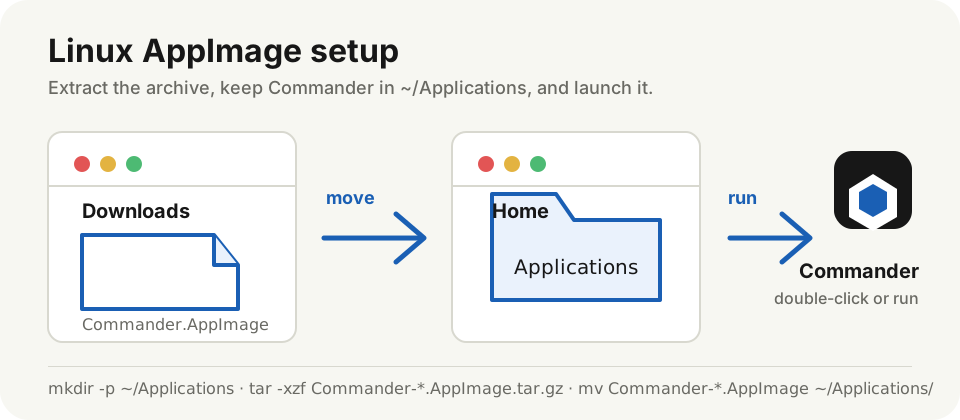
- Create
~/Applicationsif it does not exist. - Extract
Commander-*.AppImage.tar.gz. - Move
Commander-*.AppImageinto~/Applications. - Double-click the AppImage, or run it from the terminal.
mkdir -p ~/Applications
tar -xzf Commander-*.AppImage.tar.gz
mv Commander-*.AppImage ~/Applications/
~/Applications/Commander-*.AppImage