Commander guide
Commander Operations
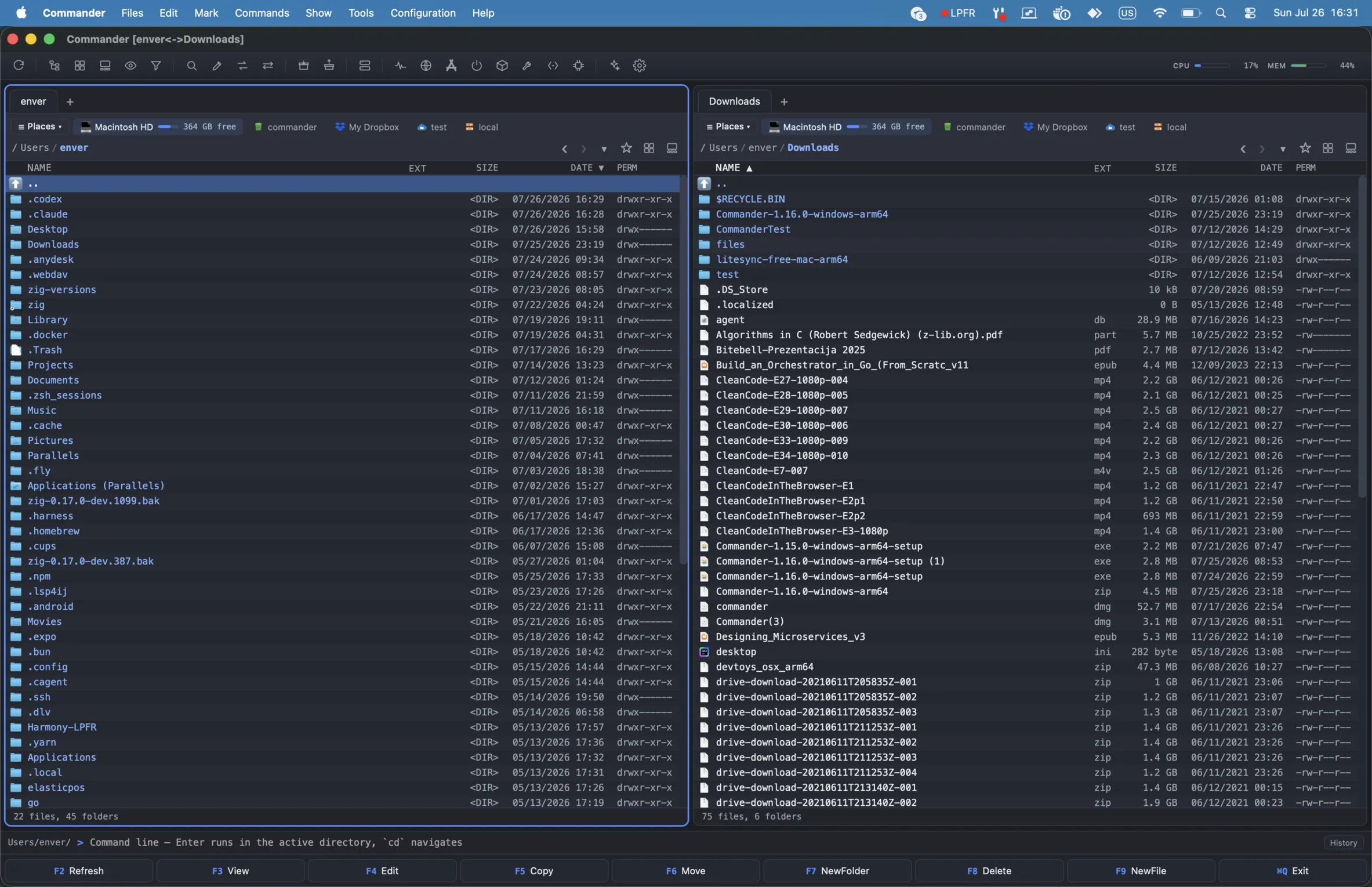
The default dual-pane workspace keeps source and destination visible during file operations; a stacked pair and four-pane grid are available from Show → Pane Layout.
Core file operations
Commander follows the classic function-key workflow: F3 view, F4 edit, F5 copy, F6 move, F7 new folder, F8 delete and F9 new file. Shift+F6 renames, and Alt+F4 quits (⌘Q on macOS).
Edit (F4) opens the built-in syntax-aware editor in its own window for local UTF-8 text and source files, with save, reload, find and replace, go to line, code folding and word wrap. It can be configured to hand off to the system’s default editor instead. New Window (Ctrl+N) opens another full Commander window.
Copy and move operations run in the background across local, remote and cloud panes. Local collisions offer Replace, Keep Both, Skip or Cancel. Each saved remote connection can ask every time, replace existing files or skip them; the policy is scoped to that connection and stored in the OS secret manager.
When exactly one local item is selected, the editable destination includes its filename. Changing that last component names the copied or moved result as part of the same operation. Multi-item and remote transfers remain folder-only.
Transfers between two remote providers stage one top-level item at a time in a private temporary directory, so temporary disk use is bounded by the largest item. A remote move deletes only the exact sources that started, and only after the complete relay succeeds; failure or cancellation leaves every source intact.
The activity popover exposes the whole queue. Pending operations can run sooner or later without pre-empting the active worker. Settings also provides an aggregate speed limit in KiB/s for local streamed copies and native cloud uploads, downloads and relays; SFTP, connected-device and plugin subprocesses remain uncapped because Commander cannot meter their opaque byte streams.
In either two-pane layout the other pane is the destination. In the four-pane grid the last active pane is the initial target, and any inactive pane can be pinned with its Target control. The Copy and Move dialogs repeat all three inactive panes as destination cards while keeping the final path editable; a confirmed choice becomes the target for later pairwise operations.
Verify copied files (Settings → Operations) is off by default: with it on, each copied file is read back and checksummed against the source, which catches a drive or enclosure that accepted a write without keeping it. It roughly doubles the I/O of a copy, which is why it is opt-in, and it also covers the copy half of a move to another disk — the check runs before the original is removed.
Change Attributes… (Files menu) applies modified and accessed timestamps and POSIX permissions across a whole selection, optionally recursing into nested folders. Each field is opt-in: an unchecked row is left alone rather than being rewritten with its current value. Clipboard operations also work the way the desktop does, with Ctrl+C, Ctrl+X and Ctrl+V. On Windows, local file context menus can use the native Shell menu so installed shell extensions and standard system verbs remain available.
The Drop Shelf handles the case where the files you want are scattered across several folders. Open it from the toolbar, add items as you go (right-click → Add to Drop Shelf, or “Add selected”), then copy or move the whole collection into the active pane in one operation. The shelf holds local items, survives a restart, and keeps the usual collision prompts, progress, verified copies and Undo; whatever is skipped or fails stays on the shelf rather than disappearing quietly.
Undo
Undo File Operation (Files → Undo File Operation, or Alt+Backspace) reverses the last copy, move, delete, rename or new folder. A deleted item is restored from the operating-system Trash, a move returns to the folder it came from — even when the selection was gathered from several folders — and undoing an operation that created files sends those files to the Trash rather than deleting them.
Only exactly reversible operations are offered. A permanent delete with Shift+Delete, a delete performed on a remote or cloud pane, and a move resolved with Keep both cannot be undone, and the menu item stays disabled instead of partially restoring a selection.
Ctrl+Z (⌘Z on macOS) also triggers Undo File Operation when the platform’s text-editing Undo has not already claimed the key, which is why Alt+Backspace is the shortcut the menu advertises. On macOS, ⌃Z edits the file comment.
Delete, trash and recovery
Recoverable delete moves files to the operating-system Trash. Shift+F8 or Shift+Delete performs permanent deletion, after a confirmation prompt. Trash views include Put Back and Empty Trash actions, so cleanup can remain reversible unless permanent deletion is chosen explicitly.
On Windows, Commander recycles through the Windows shell directly, which also makes deleting a large selection noticeably faster. When a delete does fail, it explains why — the file is open in another program, permission is missing, or the item can only be removed permanently with Shift+Delete — instead of showing a raw error code.
Securely Delete… (Files menu, or the right-click menu) overwrites the selected files with random data before removing them. It always confirms, and the confirmation states the caveat: this is a deterrent, not a guarantee. An SSD writes the new bytes elsewhere and the old blocks survive until the drive reuses them, and on APFS, Btrfs or ZFS the overwrite allocates new space by design — so full-disk encryption is what actually protects data on that hardware. It works on local files only, since no remote server will overwrite bytes in place on request.
Batch work
Multi-rename supports name, extension and counter masks, plugin metadata masks
such as [=exif.DateTaken], search and replace — literal or regular expression,
with $1, $2 capture references in the replacement — case transforms, live
preview and collision detection.
Find Files searches recursively by name and content, then jumps directly to a result. It can filter by date, size and kind, match extended attributes and search inside archives. Compare by Content opens a side-by-side line diff.
Quick file search (Ctrl+P) is the fast path for “where is that file”: type part of a name, pick from the results, and the file opens in Commander’s editor. It searches below the active pane’s folder using the same sources as Find Files.
Directory Synchronization (Shift+F2) categorizes differences between the panes — left-only, right-only, newer, different, identical — and copies either direction, recursing through subfolders. The compare runs in the background with live progress and a Stop button, a folder that exists on only one side is listed as a single row that copies whole, and the copying itself goes through the same background worker as any other bulk transfer.
The recursive walk covers local-to-local, local-to-remote and remote-to-remote pairs, including combinations of SFTP, S3, WebDAV, FTP, Dropbox, Google Drive, OneDrive, Box, pCloud and connected iOS devices. Remote-to-remote transfers stage one selected top-level item at a time, so temporary disk use is bounded by the largest item rather than the whole plan.
Built-in archive panes and installed filesystem-plugin panes are compared recursively too. Archives remain comparison-only. A plugin enables each copy direction only when it declares the corresponding copy-out or copy-in operation; unknown virtual schemes retain a single-level comparison of the loaded rows.
A one-way comparison can also mirror destination-only items. Deletion rows start unchecked and always receive a separate exact-path preview. Copies finish first, then Commander re-runs and revalidates the deletion plan; any copy error, cancellation, new source counterpart, changed destination or incomplete listing withholds the entire deletion phase. Local destinations use the OS Trash and Commander Undo; Google Drive, OneDrive, Dropbox, Box and pCloud name their service recovery area. SFTP, S3, WebDAV, FTP, iOS and writable filesystem plugins are labelled clearly as permanent before confirmation.
Scheduled and headless synchronization
A one-way local comparison can be saved as a named profile and then run without the interface at all:
Commander --sync-profile NAME
It is a dry run unless you ask it to apply, so a profile can be inspected before it is trusted. From the Synchronize dialog the same profile can install a per-user schedule — at login, hourly, daily or weekly — through launchd on macOS, Task Scheduler on Windows or systemd on Linux, and the dialog reports when it last ran and what it did.
Search sources
Name searches can be accelerated by two indexes before Commander falls back to walking the filesystem:
- Commander’s own catalog — a local SQLite index of names, paths, sizes, modification times and kinds, kept current by generation scans and a directory watcher. It is only consulted when its scan is complete.
- The platform’s index — Spotlight on macOS, Windows Search on Windows, and
plocate/locateon Linux when installed. - Filesystem traversal — always available and always authoritative.
Every candidate from either index is re-checked against the live filesystem before it is shown, so stale index entries cannot produce a wrong result. A current, complete Commander catalog can also answer “no matches” authoritatively, avoiding an unnecessary full walk; an unavailable catalog or a native-index miss continues to the next tier. Settings → Search turns the two accelerators off independently; traversal remains available as the fallback. Content, archive-member and extended-attribute searches always use the live engines.
Checksums
Create Checksum File… writes a manifest for the selected files in SHA-256,
SHA-512, SHA-1, MD5 or CRC-32 (.sfv) form; Verify Checksums… reads one back and
reports each entry. Both run on the background job pool with a Stop button, so a
selection of large files never blocks the window.
The formats are chosen for interoperability rather than convenience: a file
Commander writes verifies with shasum -c, and Commander verifies manifests
written by shasum, md5sum or an SFV tool, including BSD-tagged lines and files
that mix digest types. Verification lists mismatches and missing files first.
Archives, documents and conversion
Commander can pack selected files into archives, unpack archives into the other pane, browse supported archives as virtual folders and extract only selected members.
Document tools cover file combining and splitting, PDF combining and page splitting, plus known file-type conversion across data, image, audio, video and document categories. Convert to PDF is part of this workflow where supported by the source format.
Remote, cloud and network panes
Connect to Server (Ctrl+F) opens the Remote Connections dialog. Every connection type mounts inside a pane and behaves like any other folder, so copy, move, rename, delete and preview work the same across local and remote panes.
SFTP panes browse a remote host like a local folder and use the system OpenSSH client. Connection profiles live in the OS secret manager, not in Commander settings or browser storage.
Object Storage panes browse S3-compatible buckets and prefixes on Amazon S3,
Backblaze B2, MinIO and Google Cloud Storage interoperability endpoints, preview
objects and delete objects or prefixes. Commander keeps credentials in the same
secret-manager-backed profile store and addresses the pane through an internal
s3:// profile URI rather than putting credentials in paths.
WebDAV shares such as Nextcloud and ownCloud, and FTP or explicit FTPS servers,
connect in-process through Commander’s bundled libcurl. No external curl
executable and no temporary credential file are involved.
A connection profile for FTP, FTPS or WebDAV that has no saved password prompts for one as the pane opens, and a saved password the server rejects gets one retry prompt. Either way the entered password is held in process memory for the current app session only: it is never written to the stored profile, so a one-off login leaves nothing behind and a bad saved credential has to be corrected explicitly in Connections. SFTP takes no password at all — it authenticates through the system SSH key or agent.
Dropbox, Google Drive, OneDrive, Box and pCloud authorize through the provider’s own login page in a browser, and Commander receives an access token — your password is never typed into the app. Tokens are stored in the OS secret manager like every other connection profile. Saved connections also appear in the drive strip as bookmarks, where a right-click removes them. A provider without app keys in the installed build stays disabled instead of presenting a sign-in that cannot finish.
On macOS, iCloud Drive appears in Places as a normal local directory. macOS owns sign-in, synchronization, offline files and access permissions, while Commander uses its complete local operation path.
Network shares are browsable in-pane on every platform. On Windows, Network Neighborhood lists workgroups, then computers, then server shares and continues through normal UNC paths. On macOS and Linux, Network Shares lists SMB and NFS shares already mounted by Finder, GVfs or the system configuration. Opening one switches to its native mount path, preserving normal copy, move, delete, Undo, tabs, previews and terminal behavior. The operating system remains responsible for connecting and authenticating, so Commander stores no duplicate network password.
Remote desktops
Ctrl+Shift+R, the toolbar dropdown, or Commands → Remote Desktops… manage saved
machines for RDP, VNC, AnyDesk, TeamViewer, or any other client through a custom
command line with {host}, {user} and {port} placeholders. Commander does not
embed a viewer: it launches the client already installed on your machine, and
shows the exact command it will run before running it.
Profiles are stored in the OS secret manager, never in app settings or browser storage. A saved password is copied to the clipboard so you can paste it into the client’s own prompt, rather than passed on a command line where any process listing would expose it.
Both connection dialogs can export and import every saved connection at once — panels and remote desktops in one file. The default export omits all credentials and is plain, readable JSON; including credentials requires a passphrase and produces an encrypted file, as Commander does not write secrets to disk in the clear. Import merges by default, updating matching entries in place instead of duplicating them, or replaces the whole set when restoring a machine.
Nearby Share
Files → Share with Nearby… transfers selected files to another computer running Commander on the same local network. The receiver chooses who may discover it — known devices only, everyone for ten minutes, or no one — and must accept each request explicitly. A first-time pairing shows the same six-digit verification code on both computers to compare before accepting.
Transfers are direct peer-to-peer over the local network with no upload and no
relay server, and the metadata and file chunks are individually encrypted and
authenticated. Accepted files are written to the receiver’s Downloads folder;
an existing name is preserved and the incoming file becomes name (1).ext.
A fresh installation is discoverable by everyone for its first ten minutes, with a countdown on screen, so two new machines can pair on first use; after that it answers known devices only until you say otherwise.
Nearby Share reaches Commander desktops only. It does not interoperate with the local sharing features built into other systems, and cannot send to an iPhone, iPad or Android device. Folders are not supported yet, and a single request carries at most 256 regular files. Discovery needs UDP ports 53317–53332 and transfers need TCP ports 53340–53355 through the host firewall; on Windows, Commander requests confirmation once and adds those rules itself, scoped to its own executable and the local subnet.
Command line and system tools
The installed executable also provides an authenticated shell-to-GUI bridge. From an external shell or script it can reveal, view or edit paths, navigate a specific pane, restore a workspace, select newline- or NUL-delimited paths, fill the Drop Shelf and show notifications in the last-focused Commander window. It can also route bounded stdin or a file to typed diff, Markdown, JSON, log, CSV, text and media views. The complete command surface and security model are in the Commander command-line reference.
The built-in command line runs shell commands in the active directory. cd
navigates the active pane. Autocomplete learns from the current session and from
real zsh, bash or fish history. Fuzzy matches appear in a suggestion list, while
a matching prefix appears dimmed inline and can be accepted with Right Arrow.
The History button opens searchable command-output records containing the command, working directory, exit status, standard output and standard error. History is capped at 1,000 records and 32 MiB, exists only for the current Commander session and is never written to disk. Commands use an absolute 30-second deadline, including commands that continuously stream output.
Integrated terminal tabs start in the active pane’s directory. When the shell
reports its current directory through the standard terminal protocol, the path
display and tab label follow cd rather than remaining fixed at the starting
folder. Open Terminal Here and Open Folder in Terminal on local pane context
menus create a new tab at the exact selected path.
Activity Monitor is available in both interface modes (Ctrl+Shift+M, or Commands → Activity Monitor…). Optional CPU, MEM and DSK toolbar gauges open it on their matching tab. They are off by default, so sampling runs only while Activity Monitor is open unless the user enables them. The CPU tab charts user and kernel time with the load average above a searchable, sortable table of the processes driving it; the Memory tab breaks physical memory into app, wired, compressed, cached and free, adds swap where the platform reports it, and lists the processes holding it; the Disk tab charts read and write throughput, shows totals since boot and reports how full each mounted volume is; the Network tab lists the machine’s listening ports. A single sampler feeds the gauges and the panel — every two seconds when the gauges are enabled, once a second while the panel is open.
Advanced mode adds the Tools menu — installed apps, package managers (Homebrew on macOS, winget or Chocolatey on Windows), an external-tools check, hex view and binary inspection — along with the permissions column, the always-on command line and the container filesystem browser. Installed applications open in Smart Clean, where they can be sorted by cleanup relevance, last use, size, install date or version.
Installing on Linux
Each release publishes three Linux formats per architecture: a .deb for Debian
and Ubuntu, an .rpm for Fedora and openSUSE, and an AppImage for a portable
install that no package manager owns. All three carry AppStream metadata so
software centers can show Commander’s name, icon, description and release
information consistently.
sudo apt install ./Commander-*-linux-x86_64.deb
sudo dnf install ./Commander-*-linux-x86_64.rpm
Every Linux artifact is signed. A detached signature sits beside each file — the
same URL with .asc appended — and the release folder carries
Commander-<version>-linux-signing-key.asc. Import that key once and
gpg --verify checks a download before it is installed.
Updates and maintenance
Installed builds can check for newer Commander releases and apply updates. The current updater flow tracks the live release manifest used by the website downloads, so users can move from one published build to the next without manually checking every package. After an installed marketing version changes, Commander shows a one-time offline What’s New dialog sourced from the release notes bundled into that build. First launch still shows the interface-mode picker instead.
Smart Clean includes large-file, large-directory, duplicate, installed-app, Git repository and system-junk scans. It starts only the visible tab and labels its discovery source as Commander’s index or a filesystem fallback; duplicate contents and live Git metadata are still verified. Large-directory scanning is useful when reclaimable space is concentrated in folders rather than individual oversized files, and the installed-app list ranks by cleanup relevance so large software you have not opened in a long time surfaces first.