Commander guide
Commander Features
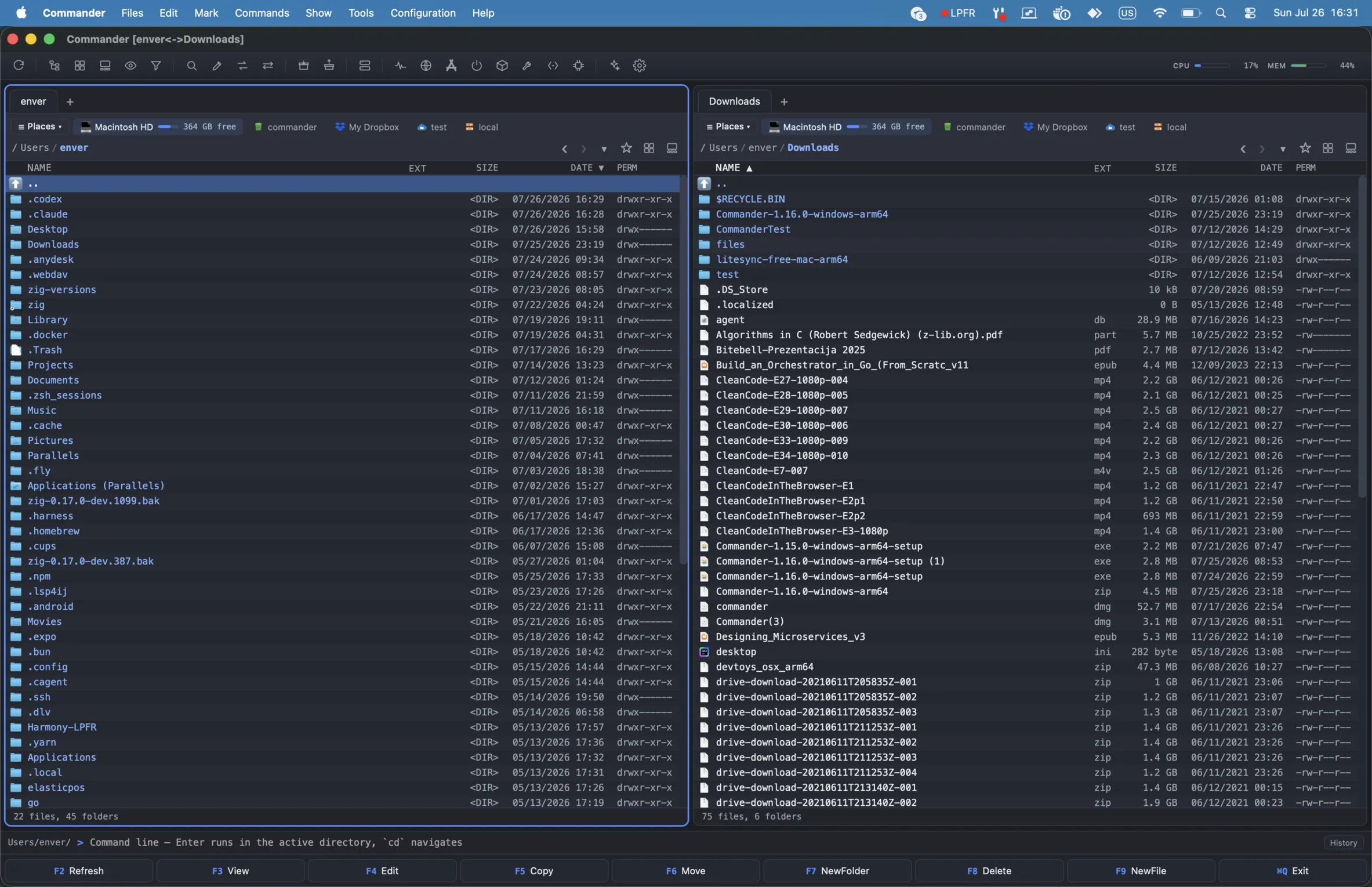
Commander in Advanced mode with two file panes, dense columns and a built-in command line.
Why Commander stands out
Commander brings the fast dual-pane workflow of classic file managers to macOS, Windows and Linux. It is built for keyboard-first file work, but still keeps the visual tools people expect from a modern desktop app: previews, context menus, drag and drop, native file icons, gallery browsing and persistent sessions.
Normal and Advanced modes
Normal mode gives most people a clean file-management workspace: two panes by default, folder tabs, comfortable spacing, sortable name, size and date columns, hidden files kept out of sight and the full set of copy, move, view, rename, archive, conversion and cleanup tools.
Advanced mode is denser and more technical. It shows hidden files, adds POSIX permission columns, keeps an always-on command line, and enables power-user tools such as Git status, installed applications, package manager checks (Homebrew on macOS, winget or Chocolatey on Windows), an external-tools check, hex viewing, binary inspection and the container filesystem browser. The Activity Monitor is not one of them — it is available in both modes.
Both modes follow the operating system’s light or dark appearance by default, or can be locked to one of them under Options → Appearance → Theme. The choice covers the panes, dialogs, the integrated terminal and the separate Viewer and Editor windows, and applies immediately.
The built-in manual (Help → Commander Help, or F1) covers the whole app in fourteen illustrated topics, and its shortcut reference is generated from the live key table, so it lists the keys you actually have — rebinds included.
Settings are searchable by name, and Settings → Shortcuts rebinds any keyboard command. A combination already in use names the command it would displace before you commit, one that belongs to the menu bar is called out, and a change takes effect at once — the help reference, button captions, tooltips and native menus all repaint. Only the commands you change are stored, so new defaults in later releases still reach you.
Panes, navigation and menus
Commander starts with two independent panes side by side. Show → Pane Layout can stack that pair over and under or expand it into a four-pane grid. Every pane has its own folder tabs, history, clickable breadcrumbs, sortable columns and selection controls. Drag the dividers to resize the layout; the layout, divider positions, pane locations, tabs and history persist between launches. Tab cycles the visible panes in their on-screen order.
File operations remain a clear source-to-target pair in every layout. With two panes the other pane is always the target. In the four-pane grid Commander starts with the last active pane, or you can pin any inactive pane with its Target control. Activating that target swaps the pair, and Copy and Move also show all three inactive panes as destination cards before they run.
A tab can be locked from its right-click menu, which turns it into a fixed folder bookmark: navigating away opens a new tab rather than moving the locked one, and close-all leaves it alone. For a whole setup rather than a single folder, save a named workspace — the pane layout and divider positions, every visible pane, every tab, the active pane and the view modes — and restore it when you come back to that project. Workspaces are separate from the session, which simply reopens where you left off.
Commander is multi-window. New Window (Ctrl+N) opens another full instance on any platform, the macOS Dock menu lists and focuses open Commander and Viewer windows, and the Linux launcher quicklist offers New Window.
Native menus cover files, editing, marking, commands, show options, configuration and help. Advanced mode adds a tools menu for system and developer workflows. Context menus use native operating-system integration where it matters. On Windows, normal local files can use the Shell context menu so installed shell extensions and standard system verbs remain available alongside Commander actions.
View options include list-oriented pane browsing, thumbnail browsing and Gallery view for visual directories where image inspection matters more than file metadata density. The active pane can also switch to a Folder Tree (Ctrl+F8) for tree-style navigation, and a Directory Branch view (Ctrl+B) flattens a folder — or only its selected subfolders — into a single recursive listing with relative paths.
The Command Palette (Ctrl+Shift+P, or Commands → Command Palette…) reaches every menu command by name. Its list is generated from the menu bar itself, so it cannot drift from what the app can actually do, and commands the current selection cannot act on appear dimmed rather than disappearing.
Quick file search (Ctrl+P) is the file-shaped counterpart: type part of a name
and it finds the file anywhere below the active pane, then opens the one you pick
in Commander’s editor. It queries the same three sources Find Files uses, in
order — Commander’s own index, the platform’s index (Spotlight on macOS, Windows
Search on Windows, locate on Linux), then a full filesystem walk — so an index
that has not caught up costs speed, never results.
Navigation can also be linked. Sync Browsing (Show → Sync Browsing) makes the
inactive pane repeat the same relative move: enter photos/2024 on one side and
the other enters its own photos/2024, go up two levels and it goes up two. An
unrelated jump — a bookmark or a typed path — mirrors nothing, and a folder the
other side does not have leaves that pane where it is. It is off until you turn
it on, because it changes what navigation does. Ctrl+Left and Ctrl+Right open the
folder under the cursor in the target pane, Ctrl+Up opens it in a new tab, and
Show → Open Folder in Other Pane does the same from the menu.
Frequently used folders can be bookmarked to a hotlist for one-click return, and power users can extend the app itself: add custom shell-command buttons to the toolbar and register external archiver commands for formats beyond the built-in engine.
Tags, priorities and row colours
Any file or folder can carry one of seven colour tags, set from the right-click menu. On macOS these are the operating system’s own tags, so everything else on the desktop sees them. On Windows and Linux, where no system-wide tag API exists, Commander writes its own label alongside the file — an extended attribute or an NTFS stream — so the mark travels with the file instead of living in a database that can drift out of step.
The same menu sets a priority: Important, Very important or Critical. That one is Commander’s own field, shown on the row and identical on every platform.
A pane’s tag sidebar filters the entire volume by a colour or a priority and returns the matches as a flat list you can work with normally. On macOS the colour filters go through the system index and come back immediately; elsewhere Commander scans in the background with a Stop button.
Row colours are separate and rule-based: an ordered, first-match-wins list of
wildcard patterns in Settings — *.log, node_modules — each with a colour and a
files-or-folders scope. Matching rows are tinted consistently across the list,
tree, thumbnail and gallery views.
Undo and checksums
File operations have a safety net. Undo File Operation (Files → Undo File Operation, or Alt+Backspace) puts back the last copy, move, delete, rename or new folder: a trashed item is restored from the Trash, a move goes back to the folder it came from even when the selection spanned several, and undoing something that created files trashes them rather than deleting them outright.
Commander only offers Undo for steps it can reverse exactly. A permanent delete (Shift+Delete), a delete on a remote or cloud pane, and a move you resolved with Keep both are never undoable, and the menu item stays greyed out instead of half-working.
Create Checksum File… and Verify Checksums… (both on the Files menu) cover
integrity checks: SHA-256, SHA-512, SHA-1, MD5 and CRC-32 (.sfv), hashed on a
background worker with a Stop button so a multi-gigabyte selection never freezes
the window. The on-disk formats are the interoperable ones — what Commander
writes verifies with shasum -c, and Commander verifies what shasum, md5sum
or an SFV tool wrote, including BSD-tagged lines and manifests that mix digest
types. Mismatches and missing files are reported first.
Background transfers and conflicts
Copy and move use the same background queue across local, remote and cloud panes. Ordinary F5/F6 transfers can now relay directly between two remote providers: Commander stages one top-level item at a time in a private temporary directory, bounding disk use to the largest item. A remote move removes its sources only after the entire relay succeeds; a failure or cancellation leaves them in place.
Local collisions offer Replace, Keep Both, Skip or Cancel. Every saved remote connection can use Ask every time, Replace existing or Skip existing; the policy is scoped to that connection and stored with it in the operating-system secret manager. Keep Both remains local-only because cloud providers do not share a safe atomic alternate-name operation.
The activity popover shows the complete operation queue. Pending rows can be moved sooner or later without interrupting the running operation. An optional aggregate transfer limit in KiB/s covers local streamed copies and native cloud uploads, downloads and relays; opaque SFTP, device and plugin subprocesses remain uncapped because their byte streams do not pass through Commander.
Recursive synchronization and safe mirrors
Synchronize Directories (Shift+F2) compares the source and target recursively, whether they are local, remote or cloud panes. It also compares built-in archive folders and installed filesystem-plugin panes recursively. Remote-to-remote copy stages one top-level item at a time, while archives remain comparison-only and each plugin copy direction follows the capability that plugin declares.
A one-way comparison can mirror destination-only items. Those deletion rows start unchecked and receive a separate exact-path preview. Every copy must succeed and Commander must revalidate the complete plan before deletion begins; if either side changed, a listing was incomplete or the operation was cancelled, nothing is deleted. Local items go to the OS Trash and remain available to Undo; Google Drive, OneDrive, Dropbox, Box and pCloud identify their recovery area, while providers without a Trash contract are marked as permanent before you confirm.
Viewing, preview and plugins
Quick View turns the target pane into a live preview that follows the cursor. The standalone Viewer supports text, source code with syntax highlighting, Markdown, parsed unified diffs, JSON trees and tables, filterable logs, tables, images, PDFs, EPUB files, audio and video. JSON expansion is lazy and bounded; log views count levels across the complete input and provide literal text plus error, warning, info and debug filters.
Viewer tools include word wrap, text and hex modes, encoding switches, zoom, rotation, find, previous and next file navigation, plus a dedicated Viewer menu. Plugins discovered at startup can route specialized formats such as CSV, SQLite, archives or disk images to the right viewer or filesystem handler.
Filesystem plugins can be more than viewers. Each one declares the operations it supports — copy out, copy in, create folder, rename and delete — and Commander enables only those actions. Read-only archive and disk-image plugins stay read-only, while writable providers use the normal background transfer queue; the container filesystem plugin is the first provider to support the full set.
Deployable plugin packages are advertised from the current release’s plugin catalog. The dedicated plugin page reads the release manifest at runtime, follows the current release path and shows the plugins that are currently available, including version and platform metadata when provided. The Commander page introduces the plugin system and links to the full catalog.
Editing files
Edit (F4) opens Commander’s built-in editor in its own window. It is a syntax-aware editor for local UTF-8 text, configuration and source files, with highlighting and code folding for dozens of languages — JavaScript, TypeScript, JSON, HTML, CSS, Markdown, Python, Rust, C and C++, Go, Java, PHP, SQL, YAML, TOML, Shell, Zig and more — chosen automatically from the file name.
The editor supports save, reload from disk, undo and redo, find and replace, go to line, word wrap and block folding, from either the toolbar or the native Editor menus. A status bar reports line and column, selection length, line count, byte size, line ending (LF or CRLF, preserved on save), encoding and the detected language. Unsaved changes are guarded when reloading or closing the window, and Reveal in Commander returns to the file in its pane. Edit can also be configured to open the system’s default editor instead of the built-in one.
Command line, terminal and updates
The built-in command line runs in the active pane’s directory and treats cd as
pane navigation. It provides fuzzy suggestions from the current session and real
zsh, bash or fish history, plus a dimmed inline prefix completion accepted with
Right Arrow.
Its History view searches bounded in-memory records of each command, working directory, exit status, standard output and standard error. These records last only until Commander exits and are not written to disk.
When you need a full shell, Open Terminal (Ctrl+`) drops an interactive terminal into a panel at the bottom of the window, rooted in the active pane’s directory. Unlike the single-line command line, it runs your login shell over a real PTY, so scrollback, colors, interactive programs and window resizing all work.
The panel holds several shells as tabs (Ctrl+Shift+T opens one in the active pane’s folder, Ctrl+Shift+W closes it, Ctrl+Tab and Ctrl+Shift+Tab cycle), copies and pastes with Ctrl+Shift+C and Ctrl+Shift+V — the spelling Linux terminals use, because Ctrl+C belongs to whatever program is running — and offers the same actions from a right-click menu, inside the terminal or on its tab strip. On macOS those are ⌘T, ⌘W, ⌘C and ⌘V, since no shell binds Command. Drag the panel’s top edge to resize it and the height is remembered; closing it only hides it, so a long build keeps running and keeps scrolling until you come back.
When a shell reports its working directory through the standard terminal
protocol, the active path and tab label follow cd instead of staying fixed on
the folder where the shell started. Local pane context menus also provide Open
Terminal Here and Open Folder in Terminal, each creating a fresh tab at that
exact path.
A second invocation of the Commander executable can control the running desktop app from an external shell or script. Commands reveal, view or edit a path, navigate the left or right pane, restore a workspace, select a list of files, fill the Drop Shelf or show a notification. Relative paths resolve in the calling shell, and an owner-only per-session token authenticates the local, data-only handoff to the last-focused Commander window.
Piped command output can open directly in the Viewer as a parsed diff, sanitized Markdown, a JSON tree or table, a filterable log, CSV, text, image, audio or video. Automatic detection is conservative, HTML is excluded, and media must match a known file signature. See the command-line reference for commands, limits, path-list composition, plugin management and headless sync.
Installed builds can update from the release manifest. After the installed version changes, a one-time offline What’s New dialog presents the release notes bundled with that build. While an update is downloading, the installer shows the real downloaded byte count before verification and relaunch.
Activity Monitor
Activity Monitor is available in both interface modes (Ctrl+Shift+M, or Commands → Activity Monitor…). Optional CPU, memory and disk toolbar gauges open it on the matching tab. The gauges are off by default, so Commander performs no background system sampling unless the monitor is open or you explicitly enable them. Each tab answers one question:
- CPU — how busy the machine is, split into user and kernel time with the load average, charted over the last few minutes, above a searchable, sortable table of the processes driving it.
- Memory — what memory is being spent on, broken down into app, wired, compressed, cached and free, with swap where the platform reports it, above the processes holding it.
- Disk — read and write throughput over time, totals since boot, and how full each mounted volume is.
- Network — the listening ports on this machine and what is holding them.
One sampler feeds both the gauges and the panel, so opening it does not double the polling: samples arrive every two seconds when the gauges are enabled and every second while the panel is open. Per-process disk I/O is deliberately absent rather than estimated.
Remote, cloud and devices
Connect to Server (Ctrl+F) opens the Remote Connections dialog, and every connection type mounts inside a pane and behaves like any other folder — copy, move, rename, delete and preview work the same way across local and remote panes. SFTP panels use the system OpenSSH client with key and agent authentication. FTP and explicit FTPS servers, WebDAV shares such as Nextcloud and ownCloud, and S3-compatible object storage such as Amazon S3, Backblaze B2, MinIO and Google Cloud Storage interoperability endpoints all connect the same way. An FTP, FTPS or WebDAV connection saved without a password prompts for one when the pane opens, and prompts again if the server rejects it, so a one-off login never has to be stored. SFTP stays key- and agent-only by design.
Personal cloud storage connects with a single sign-in. Dropbox, Google Drive, OneDrive, Box and pCloud each open your provider’s own login page in the browser and hand Commander an access token — your password never enters the app. Commander does not store credentials or other sensitive information on our servers: every connection’s parameters and tokens remain local to your device in the operating system’s keyring or secrets manager, depending on the platform. A provider whose app keys are absent from a particular build stays disabled instead of exposing a sign-in flow that cannot finish.
On macOS, iCloud Drive appears in Places as a normal local folder. macOS owns the account, synchronization, offline availability and permissions; Commander reuses its complete local operation surface.
Network shares open inside a pane on every platform. Windows browses workgroups, computers and shares before continuing through normal UNC paths. On macOS and Linux, Network Shares lists SMB and NFS shares already mounted through Finder, GVfs or the system configuration. Entering one switches to its native mount path, so copy, move, delete, Undo, tabs, previews and the terminal all keep working; the operating system owns connection and authentication. Connected phones and cameras show up in the drive strip as well — browse an iPhone or iPad over AFC on macOS, or MTP devices and cameras through gvfs on Linux, and copy media straight into a pane.
Remote desktops are managed beside the file connections, because they are the
same idea — a saved remote endpoint — even though they hand off to a separate
program. Ctrl+Shift+R (or the toolbar dropdown) lists every saved machine and
connects in one step; Commands → Remote Desktops… is the manager behind it, with
profiles for RDP, VNC, AnyDesk, TeamViewer, or any other client through a custom
command line carrying {host}, {user} and {port} placeholders. Commander
launches the client you already use rather than embedding a viewer, and shows the
exact command before it runs. Profiles live in the OS secret manager, and a saved
password is placed on the clipboard for you to paste into the client’s own prompt
rather than onto a command line, where other processes on the machine could read
it.
Either connection dialog can export and import everything at once — the remote and cloud panels and the remote desktops in a single file. The default export leaves every credential out, producing plain JSON you can read, diff or keep in version control; to include credentials you supply a passphrase and the file is encrypted, because Commander will not write them to disk in the clear. Importing merges by default, so re-importing the same file updates connections in place rather than duplicating them, and can instead replace everything for a restore.
Nearby Share
Files → Share with Nearby… sends files straight to another computer running Commander on the same local network, without email, a USB stick or a cloud round-trip. Select one or more files, pick the device, and the receiver accepts or declines. Accepted files are written to its Downloads folder with collision-safe names.
Nearby Share uses Commander’s own discovery and transfer protocol, so it works the same way between macOS, Windows and Linux — and only between computers running Commander. It is not compatible with the local sharing features built into desktops, phones and tablets: a device without Commander will not discover a Commander peer, and there is no Commander mobile client. For iPhone and iPad files, use the USB browsing described above.
Transfers stay on your network. There is no upload and no relay server — files travel over a direct connection between the two computers, and the transfer metadata and every file chunk are separately encrypted and authenticated. The first time two devices meet, both screens show the same six-digit verification code to compare before you accept. Each installation’s private device identity is kept in the macOS Keychain, Linux Secret Service or Windows Credential Manager.
Discovery is under your control. A receiver can answer known devices only (Commander keys you chose to remember), open up to everyone for ten minutes before falling back automatically, or answer no one. A fresh installation starts in the ten-minute everyone mode with a live countdown, so two new machines can find each other on first use, then settles into known devices only. Known devices are not contacts: Commander never reads the system address book, phone numbers, email addresses or Apple, Microsoft and Google accounts.
Both computers need to be on the same local network, and the host firewall must allow Commander on UDP 53317–53332 for discovery and TCP 53340–53355 for transfers. On Windows, Commander asks for confirmation once and adds those rules itself, scoped to the Commander executable and the local subnet, so discovery also works on networks Windows classifies as Public. Guest Wi-Fi, client isolation and some VPNs block the broadcast discovery even when both machines have internet access. Folders cannot be sent yet — select regular files.
Language and localization
Commander’s interface is localized into more than thirty languages, including Arabic, Bosnian, Chinese (Simplified and Traditional), Dutch, French, German, Hindi, Italian, Japanese, Korean, Polish, Portuguese (Brazil), Russian, Spanish, Turkish, Ukrainian and Vietnamese. Settings → General → Language follows the system locale by default or takes an explicit choice, switches to right-to-left layout for Arabic, and formats dates, numbers and file sizes for the active locale. Your own data is never translated — paths, command text and output, application names and release notes always appear as they are.
Date display can follow the system or use YYYY-MM-DD, DD.MM.YYYY or MM/DD/YYYY, and the size column can stay automatic or use a fixed unit from bytes through terabytes. Settings can be exported to portable JSON and imported on another installation; credentials and AI API keys deliberately remain on the original device.
Security and cleanup
Security tools include encrypted .cmdr containers, passphrase-based decryption
and optional keychain or libsecret storage where supported. Securely Delete…
overwrites a selection with random data before removing it, and says in the
confirmation that this is a deterrent rather than a guarantee: an SSD writes
elsewhere and APFS, Btrfs or ZFS allocate new space by design, so full-disk
encryption remains what actually protects data on that hardware. It applies to
local files only.
Smart Clean scans system junk, large files, large directories, duplicates, installed applications and Git repositories. It starts only the tab you open, labels results as coming from Commander’s index or a filesystem fallback, and still verifies duplicate contents and live repository data. It confirms duplicates by checksum and defaults deletion to the operating-system Trash. The installed-apps view sorts by cleanup relevance, last use, size, install date or version, surfacing large software you have not opened in a long time; relevance is a ranking rather than a verdict. On macOS an uninstall moves the app to the Trash, and related bundle-ID files are listed unverified, individually selectable and never preselected.
An optional AI Review adds a delete-safety opinion to Smart Clean. It sends only the scanned items’ names and sizes — never file contents — to an AI provider you configure, then flags each item as safe, worth a check, or best kept, and can select everything rated safe in one click. It is advisory only, stays off until you enable it under Settings → AI Assistant, and works with your own Anthropic, OpenAI or any OpenAI-compatible key such as Ollama (a zero-setup Commander Cloud option is on the way).